0
My Cart
0,00 
    No products in the cart.

Wind Sim ControlBox Manual

+

WindSim ControlBox Setup Guide for SimHub

 
Instructions for Setting Up WindSim ControlBox in SimHub Software
(Note: Applies for SimHub version 9.4.7 – the layout may slightly change over time with newer updates)

To fully enjoy your WindSim experience with SimHub, follow these instructions. Here’s how to get started:

Important Notes:

  • Do not overwrite the pre-installed firmware; WindSim ControlBox stop working if you do so.
  • Do not open the WindSim ControlBox, as this will void your warranty.
  • And please, don’t throw WindSim ControlBox out the window if you miss out on the podium!


1. Install SimHub Software

Download and install SimHub on your computer. This software controls the WindSim functionality within your sim racing setup.
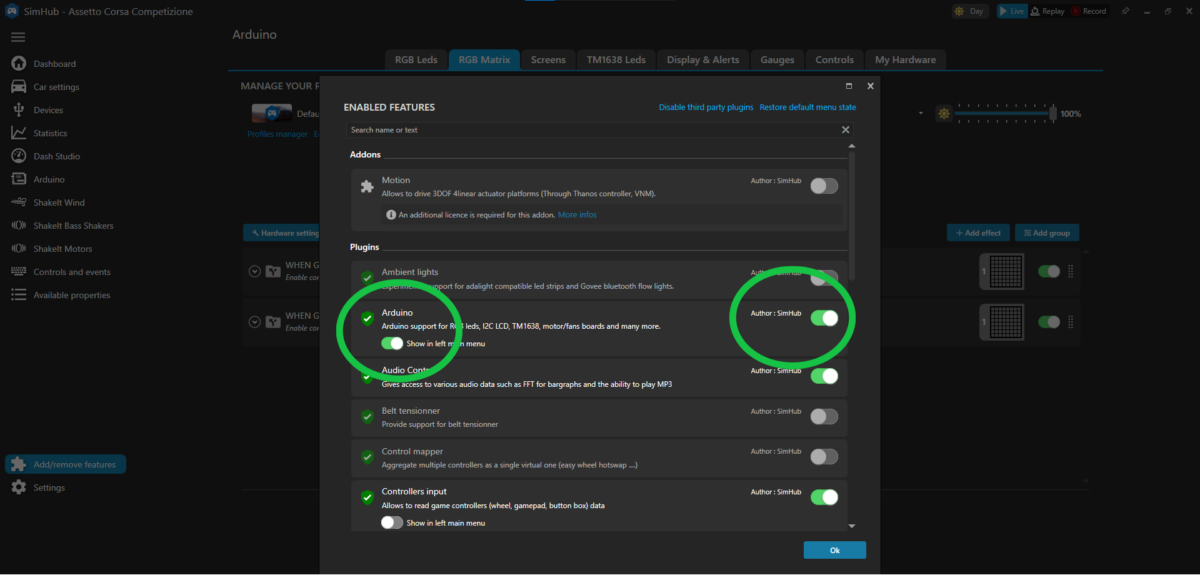
2. Activate Arduino & ShakeIt Wind Plugin

      1. STEP 1: Open SimHub and navigate to “Add/Remove features.”
      2. STEP 2: Find the “Arduino” plugin and “ShakeIt Wind Plugin” ensure both are enabled.
      3. STEP 3: Select the option to “Show in left menu.”
      4. STEP 4: Click “OK” to apply these settings.


3. Setting Arduino Board:

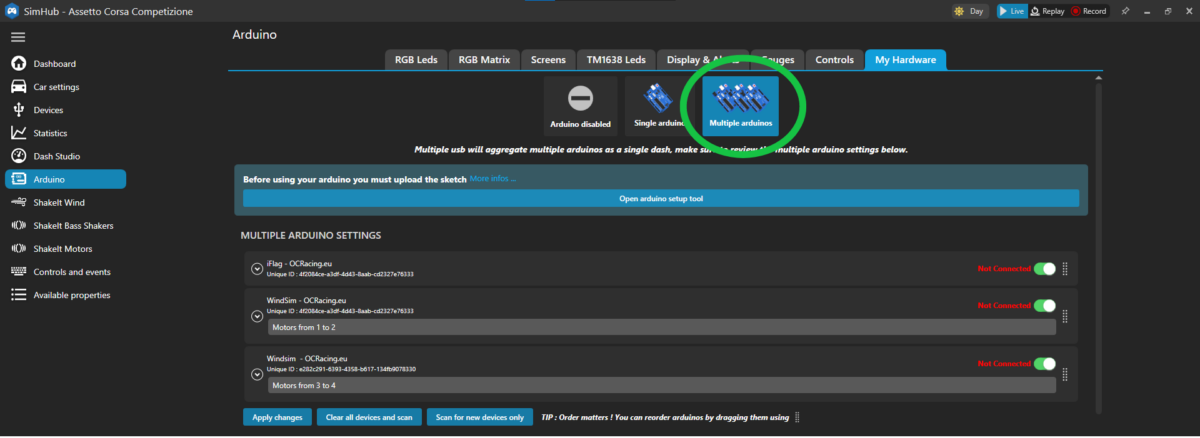
  1. STEP 5: In SimHub’s left menu, select “Arduino.”
  2. STEP 6: Select “My Hardware” and then click “Multiple devices.”
  3. STEP 7: Select “If there will appier RED WARNING please click on “Reinstall older drivers” option

4. Configure Output

  • STEP 8: Navigate to “Output Configuration” in the “ShakeIt Wind plugin”. Activate “Arduino” to control the WindSim hardware.
  • STEP 9: Open channel list by small arrow and assign Channel 1 to Left and Channel 2 to Right. This ensures the WindSim responds accurately to in-game events like speed and cornering.

  • 5. Check the functionality

  • STEP 10: To check if the fans and speed regulation are working correctly, go to the “Wind Profile” tab in the “ShakeIT Wind” plugin page and activate “Idle Wind”. The fans should start operating. You can test the left and right channels individually and verify speed control by moving the slider.
  • 6. Our recommended settings for racing

    Remote Support

    Need assistance? We offer remote support via TeamViewer. Reach out to us to schedule a session for full configuration assistance.